About the Security Center (Alpha)
This topic provides an overview of the Replicated Security Center.
The Security Center is Alpha. To get access to the Security Center, reach out to your Replicated account representative.
Overview
The Security Center helps you strengthen security enablement in your application delivery process by making it easier for both you and your enterprise customers to monitor security risks, assess known vulnerabilities, and view security information for each application release.
The Security Center surfaces the results of image scans in both the Vendor Portal and the Enterprise Portal so that your customers can see the same security information that you do for each application version. This results in greater transparency, reduced security questionnaire burden, and the adoption of newer, more secure versions of your application.
Additionally, if there is an update to any image digests associated with an existing release, the Security Center automatically regenerates the SBOM for the relevant release version, which updates calculated CVEs as well. This means that it is not necessary to promote a new release in the Replicated Platform to get an up-to-date SBOM or CVE report in the Security Center.
What images are scanned and cataloged?
When you promote a release in the Replicated Platform, Replicated identifies all container images that are referenced in the release. The Security Center then automatically generates comprehensive security information for all container images in that release.
The following describes the types of images that Replicated identifies for each release:
- Container images in PodSpecs: Any images defined in your Kubernetes manifests, such as Deployments, StatefulSets, DaemonSets, and so on. To build the list of container images for any Helm charts in the release, Replicated runs
helm templateusing the chart's default values (or, using the Helm values that you provide in the Replicated HelmChart custom resourcebuilderkey). Then, Replicated parses the output ofhelm templateto generate the list of images for the chart. For more information, see Requirements on this page. - Additional images: Any images listed in the Replicated Application custom resource
additionalImagesfield. For example, applications packaged as Kubernetes Operators might need to include additional images that are not referenced until runtime. - Embedded Cluster images: Any infrastructure images used by Replicated Embedded Cluster installations, if relevant.
How cve scanning works
The Security Center is powered by Replicated's SecureBuild technology. With SecureBuild, every image is scanned continuously (not just at release time) using the open source vulnerability scanner Grype. This means that, as new CVEs are disclosed, they automatically appear in your Security Center without requiring a new release.
The following describes the Security Center CVE scanning process:
- For each image that Replicated identified in the release, SecureBuild pulls the image by digest and scans it with Grype. SecureBuild scans for multiple architectures (amd64 and arm64) when relevant.
- Grype compares packages in the image against vulnerability databases, including NVD, OS-specific databases, and language-specific sources.
- Security Center aggregates the vulnerability counts for all images by severity: Critical, High, Medium, and Low.
- For each CVE, Security Center includes an identifier, description, CVSS score, affected artifacts, and available fixes.
- Security Center displays the results of the CVE scan in the Vendor Portal and Enterprise Portal:
- Vendor Portal: In the Vendor Portal, you can view a vulnerability overview with a severity breakdown, top risks, a complete image inventory with CVE counts, and detailed CVE information per image.
- Enterprise Portal: In the Enterprise Portal, your customers can view CVE reports showing known vulnerabilities, per-image details, and CVE reduction metrics when comparing versions.
How SBOM generation works
Replicated generates Software Bills of Materials using Syft, an open-source SBOM generation tool from Anchore. SBOMs are created in the industry-standard SPDX JSON format, which satisfies most compliance and security audit requirements. The SBOM includes detailed component information necessary for supply chain security, compliance reporting, and license auditing.
The following describes the Security Center SBOM generation process:
- For each image that Replicated identified in the release, SecureBuild runs Syft to catalog all software components.
- Syft analyzes the image layers and extracts package information from various sources, such as OS packages, language-specific manifests like package.json, go.mod, requirements.txt, and more. The output is a comprehensive SPDX document listing every software component, version, license, and relationship.
- Security Center generates SBOMs for multiple architectures (amd64 and arm64) when available.
- Security Center stores and serves the generated SBOMs through the Replicated Vendor API to make them available for download. Users can download SBOMs from the Vendor Portal or Enterprise Portal:
- Vendor Portal: In the Vendor Portal, you can download SBOMs in SPDX format for a specific release at Releases > [Release Version] > Security.
- Enterprise Portal: Your customers can download release-specific SBOMs in SPDX format from the Enterprise Portal's Security tab.
Requirements
-
Access to the Security Center Alpha requires a feature flag be turned on for your team. For more information, reach out to your Replicated account representative.
-
Version 1.9.0 or later of the Replicated SDK is required to report CVE information from specific customer instances back to the Vendor Portal. For more information, see Customer-Specific CVE Information below.
- For Helm CLI installations, additionally set the Replicated SDK to Report All Images. This ensures that the Security Center reports all container images observed in the cluster. This settting is enabled by default for Embedded Cluster installations.
-
Each Helm chart in the release must have a unique HelmChart custom resource. The HelmChart custom resource is required for both Embedded Cluster and Helm CLI installations in online (internet-connected) or air-gapped environments to create the list of images that are scanned and reported on in the Security Center.
noteFor Embedded Cluster and air gap installations, you do not need to make any changes to your existing HelmChart custom resource(s) to support Security Center image scanning.
For Helm CLI installations in online environments, note that only the HelmChart
chart.nameandchart.chartVersionfields are required to support Security Center image scanning for the given chart. For example:apiVersion: kots.io/v1beta2kind: HelmChartmetadata:name: examplechartspec:chart:# name must match the name of the chartname: examplechart# chartVersion must match the version of the chartchartVersion: 1.0.0
Limitations
-
The Security Center is Alpha. The features and functionality of the Security Center are subject to change.
-
Security Center reporting is available only for Embedded Cluster and Helm CLI installations. It is not available for kURL installations or for KOTS installations in an existing cluster.
-
If you have configured the
builderkey in any of the HelmChart custom resources in your release, note that the Security Center uses the Helm values provided in thebuilderkey to create the list of images that are scanned and reported on for the given Helm chart. The Security Center will scan and report on this same list of images for both air gap and online installations. If there are any images that you want reported on in the Security Center, ensure that they are exposed by the values provided in thebuilderkey.
Vendor Portal Security Center interfaces
Security Center dashboard
The Security Center dashboard is available in the Vendor Portal at [App name] > Security.
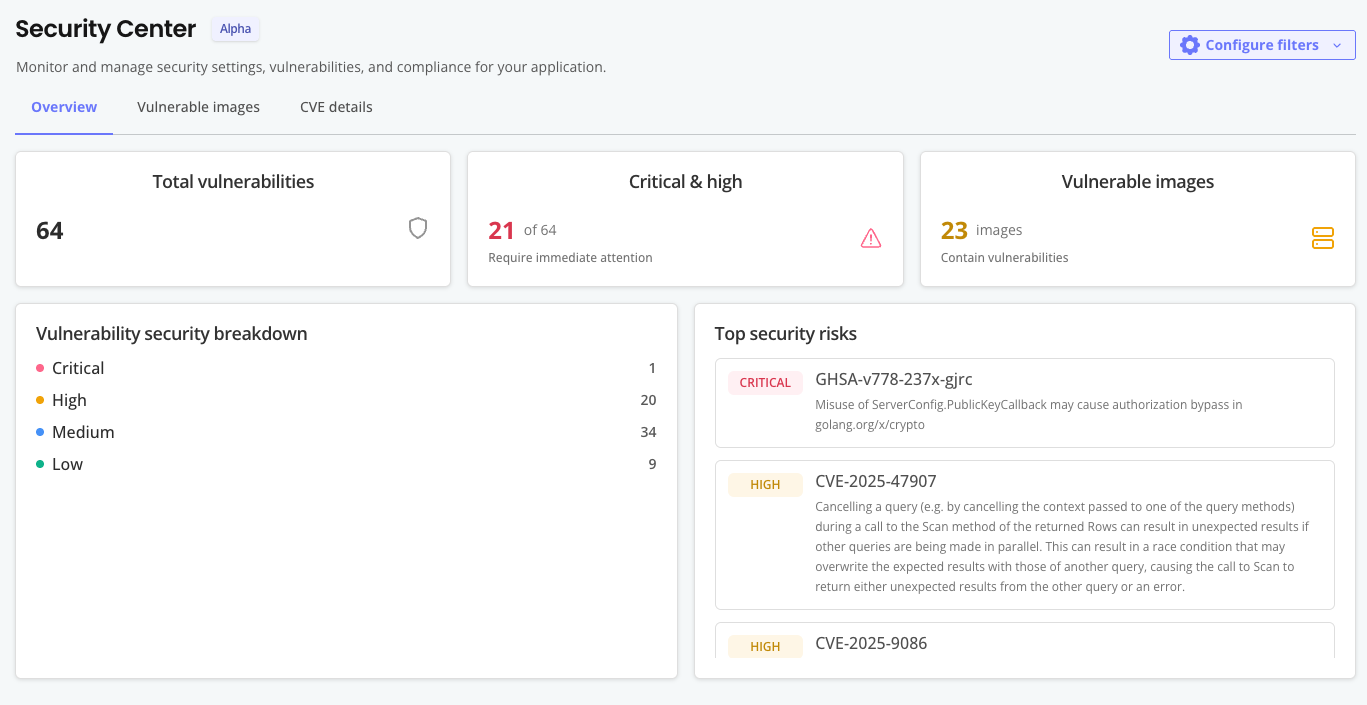
The following shows an example of the Security Center dashboard:
View a larger version of this image
You can filter for the information on the Security Center dashboard by release type (Linux/Embedded Cluster or Helm) and release channel. The information displayed on the Security Center dashboard applies to the currently promoted release of the selected type on the selected channel.
The Security Center dashboard includes the following:
- An overview of vulnerabilities present in the release, including a breakdown of CVE severity (Critical, High, Medium, Low) and a detailed list of the top security risks
- On the Container images tab, a complete list of scanned images with vulnerability counts per image
- On the CVE details tab, for each CVE identified:
- The CVE identifier and description
- The CVSS score and severity rating
- A list of images affected by the CVE
- Fixed versions (when available)
Release-specific cve information
CVE details are available for all current and previously promoted application release versions. To view CVE information for a specifc release, go to Releases > [Release Version] > Security.
Customer-specific cve information
You can view CVE details at the customer level for active instances running the Replicated SDK verson 1.9.0 or later. This gives you visibility into all container images running alongside your application, helping you identify security risks and urgent upgrade needs across your customer base.
To view CVE information for a specific customer instance go to Customers > [Customer] > [Instance] > Security.
Enterprise Portal Security Center interface
The Enterprise Portal Security Center allows you to provide key security information to your enterprise customers alongside your application releases.
The Security Center tab of the Enterprise Portal is not enabled by default. See Enable the Enterprise Portal Security Center. When enabled, the Security Center intelligently filters data based on the customer's installation type, ensuring that customers only see relevant security information.
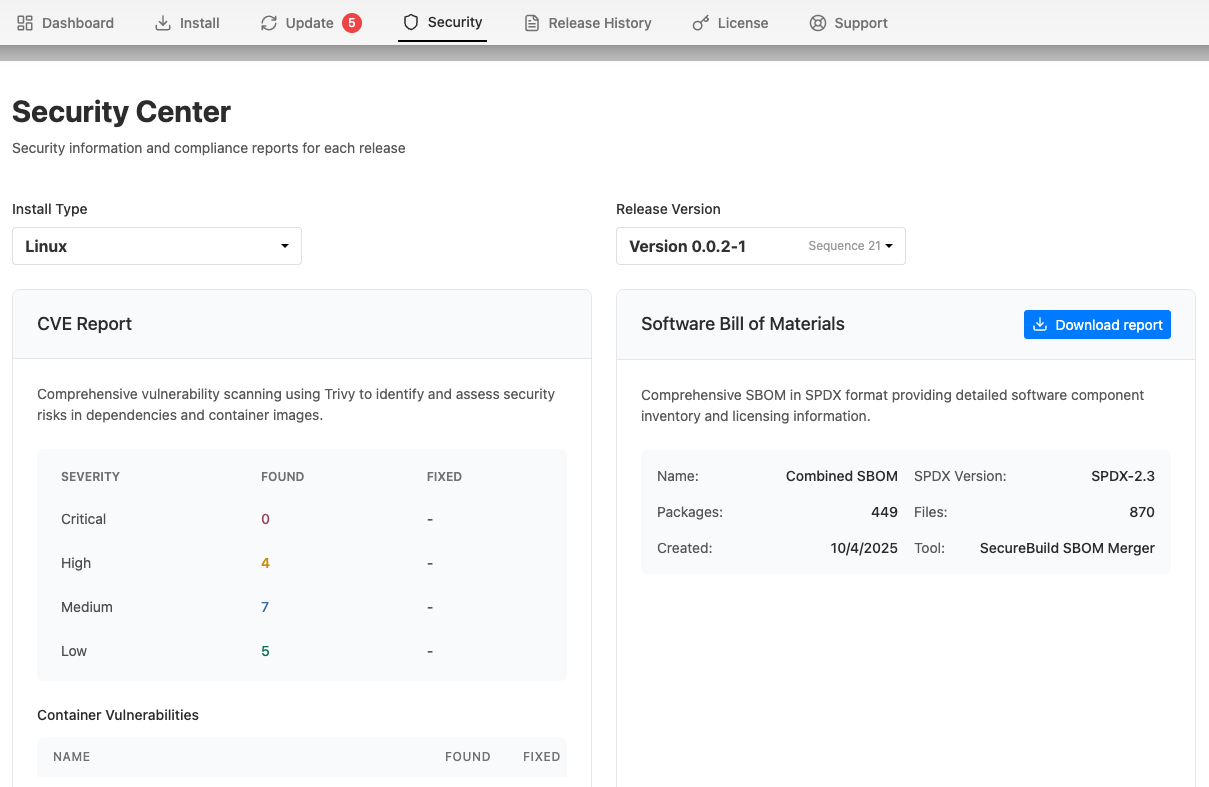
On the Security Center tab of the Enterprise Portal, for each available release version, customers can:
- View a CVE report with the complete list of known vulnerabilities and their severity levels
- View details about the vulnerabilities identified for each image
- Understand how many CVEs are fixed by upgrading to newer versions
- Download the Software Bill of Materials (SBOM) in SPDX format for compliance and security audits
The following shows an example of the Security Center dashboard in the Enterprise Portal:
View a larger version of this image
Enable the Enterprise Portal Security Center
The Security Center tab in the Enterprise Portal is not enabled by default. If the Security Center feature flag is enabled for your Vendor Portal team, you can optionally enable the Enterprise Portal Security Center tab on a per-customer basis or globally for all customers.
To enable the Security Center tab in a customer's Enterprise Portal, go to Customers > [Customer] > Enterprise Portal access.
To enable the Security Center tab for all customers using the Enterprise Portal, go to Enterprise Portal > Portal Settings > Optional Features and enable the Enable Security Center feature toggle.
Include and exclude images from Security Center scans
You can explicitly include or exclude images from being scanned by the Security Center:
-
To exclude images from being scanned in Helm CLI installations, use the installer-only annotation. This is useful if your application has any charts and resources that are only relevant to Embedded Cluster installations and should not be shown to customers that install with the Helm CLI.
-
If there are any images that are not referenced in the PodSpecs for your application but should be included in Security Center image scans, list those images in the Application custom resource additionalImages field.
Retrieve scan results with the Vendor API
You can retrieve the Security Center's scan results programmatically with the Replicated Vendor API. The API returns the same Grype scan data that powers the Security Center dashboards, so you can use the results in a CI/CD pipeline. For example, you can gate the promotion of a release from one channel to the next based on the vulnerabilities found in the release's images. This surfaces vulnerabilities earlier in your delivery process.
A pipeline that gates promotion on scan results typically does the following:
- Promotes a release to an initial channel, such as Unstable.
- Retrieves the vulnerability scan results for the images in the release from the Vendor API.
- Evaluates the results against a security policy.
- Promotes the release to the next channel, such as Stable, only if it passes.
Prerequisites
Complete the following prerequisites before you retrieve scan results with the Vendor API:
- Create a Vendor API token that has
Readaccess to your app's channels. The token needs thekots/app/[:app_id]/channel/[:channel_id]/readRBAC policy. For more information about API tokens, see Using Vendor API v3. - Note your app ID and the ID of the channel that you promote to. To list these, use the app ls and channel ls Replicated CLI commands.
The examples in this section use the following environment variables:
export REPLICATED_API_TOKEN=<your-vendor-api-token>
export APP_ID=<your-app-id>
export CHANNEL_ID=<the-target-channel-id>
The Vendor API expects the token directly in the Authorization header, without a Bearer prefix. A request that includes a Bearer prefix returns a 401 Unauthorized response.
Promote a release and get the channel sequence
You request scan results by the release's channel sequence, which is the release's position in a given channel, not by its release sequence. Promote the release with the Vendor API, which returns the channelSequence in the response:
CHANNEL_SEQUENCE=$(curl -s -X POST \
  -H "Authorization: $REPLICATED_API_TOKEN" \
  -H "Content-Type: application/json" \
  -d "{\"channelId\": \"$CHANNEL_ID\", \"versionLabel\": \"1.2.3\"}" \
  "https://api.replicated.com/vendor/v3/app/$APP_ID/release/$RELEASE_SEQUENCE/promote" \
  | jq -r '.channelSequence')
If you promote with the release promote Replicated CLI command instead, the CLI output does not include the channel sequence. To find the channel sequence for a channel's current release, run replicated channel inspect $CHANNEL_ID. For more information, see channel inspect.
Retrieve the raw scan results
To retrieve the complete Grype scan output for every image in the release, use the securebuild/scan-raw endpoint:
GET /v3/app/{appId}/channel/{channelId}/securebuild/scan-raw?channel_sequence={channelSequence}
For example:
curl -s \
  -H "Authorization: $REPLICATED_API_TOKEN" \
  "https://api.replicated.com/vendor/v3/app/$APP_ID/channel/$CHANNEL_ID/securebuild/scan-raw?channel_sequence=$CHANNEL_SEQUENCE" \
  | jq .
The response contains a scans array with one entry per scanned image. Each entry includes a scan_status field and, when the scan is complete, a result object that holds the raw Grype output, including the matches array of detected vulnerabilities:
{
  "scans": [
    {
      "image": "example.com/app/api:1.2.3",
      "scan_status": "succeeded",
      "result": {
        "matches": [
          {
            "vulnerability": {
              "id": "CVE-2024-12345",
              "severity": "High",
              "fix": { "state": "fixed", "versions": ["1.2.4"] }
            }
          }
        ]
      }
    }
  ]
}
Scans run asynchronously and continuously, so a scan might not be complete when you request the results. While a scan is in progress, its scan_status is a non-terminal value such as pending, in_progress, or generating, and its result is null. A completed scan has a scan_status of succeeded, and a scan that could not complete has a scan_status of failed. Poll the endpoint until every scan reaches a terminal status before you evaluate the results.
Grype reports more severity levels than the four shown in the Security Center dashboard. In addition to Critical, High, Medium, and Low, an individual match can have a severity of Negligible or Unknown. Filter on the severity levels that matter to your security policy.
Each match includes a vulnerability.fix.state field that indicates whether a fix is available. A value of fixed means a fix exists, not-fixed means no fix is available, and unknown means the fix status is not known. Gate on fixed vulnerabilities to focus on issues that you can remediate.
Evaluate the scan results
Use jq to evaluate the scan results against your policy. Use the ? operator to make the filters null-safe. Without it, an image whose scan has not produced a result throws an error that can silently skip the gate.
The following example counts all fixable Critical and High vulnerabilities across every image:
curl -s \
  -H "Authorization: $REPLICATED_API_TOKEN" \
  "https://api.replicated.com/vendor/v3/app/$APP_ID/channel/$CHANNEL_ID/securebuild/scan-raw?channel_sequence=$CHANNEL_SEQUENCE" \
  | jq '[.scans[]?.result?.matches[]?
      | select(.vulnerability.severity == "Critical" or .vulnerability.severity == "High")
      | select(.vulnerability.fix.state == "fixed")] | length'
To save the matching CVEs to a file for a report, wrap the results in an array. This makes the output valid JSON rather than a stream of concatenated objects:
curl -s \
  -H "Authorization: $REPLICATED_API_TOKEN" \
  "https://api.replicated.com/vendor/v3/app/$APP_ID/channel/$CHANNEL_ID/securebuild/scan-raw?channel_sequence=$CHANNEL_SEQUENCE" \
  | jq '[.scans[]?.result?.matches[]?
      | select(.vulnerability.severity == "Critical" or .vulnerability.severity == "High")
      | {id: .vulnerability.id, severity: .vulnerability.severity, fix: .vulnerability.fix.state}]' \
  > cve-report.json
Promote to the next channel
If the release passes your policy, promote it to the next channel, such as your Stable channel. To do so, call the promote endpoint again with the ID of the next channel.
Retrieve summarized scan results
If you need only severity counts rather than the full Grype output, use the securebuild/scan endpoint:
GET /v3/app/{appId}/channel/{channelId}/securebuild/scan?channel_sequence={channelSequence}
For each image, this endpoint returns a result with aggregated counts, per-severity breakdowns (critical, high, medium, and low), a vulnerability_details list, and a fixed_counts object. The fixed_counts object reports how many vulnerabilities at each severity have a fix available. This is convenient for a pass/fail gate, because you do not need to filter the matches array yourself.
Retrieve SBOMs
To retrieve the Software Bills of Materials (SBOMs) for a release, use the securebuild/sbom endpoint:
GET /v3/app/{appId}/channel/{channelId}/securebuild/sbom?channel_sequence={channelSequence}
Unlike the scan endpoints, the SBOM response is an object keyed by image reference. Each image's sbom field is a JSON-encoded Software Package Data Exchange (SPDX) 2.3 string, so parse the string with fromjson before you query it:
{
  "sboms": {
    "example.com/app/api:1.2.3": { "sbom": "<SPDX 2.3 JSON string>" }
  }
}
For example, to extract the SPDX document for a single image:
curl -s \
  -H "Authorization: $REPLICATED_API_TOKEN" \
  "https://api.replicated.com/vendor/v3/app/$APP_ID/channel/$CHANNEL_ID/securebuild/sbom?channel_sequence=$CHANNEL_SEQUENCE" \
  | jq -r '.sboms["example.com/app/api:1.2.3"].sbom | fromjson'
Example workflow to gate promotion
The following example is a GitHub Actions workflow that gates promotion to the Stable channel on the absence of fixable Critical and High vulnerabilities. It waits for all scans to reach a terminal status, evaluates the results, and fails the job when the gate does not pass. A failed job prevents the promotion step from running:
name: Gate promotion on scan results

on:
  workflow_dispatch:
    inputs:
      release_sequence:
        required: true
      channel_sequence:
        required: true

env:
  API_BASE: https://api.replicated.com/vendor/v3
  APP_ID: ${{ vars.REPLICATED_APP_ID }}
  UNSTABLE_CHANNEL_ID: ${{ vars.UNSTABLE_CHANNEL_ID }}
  STABLE_CHANNEL_ID: ${{ vars.STABLE_CHANNEL_ID }}

jobs:
  scan-gate:
    runs-on: ubuntu-latest
    steps:
      - name: Wait for scans to complete
        run: |
          URL="$API_BASE/app/$APP_ID/channel/$UNSTABLE_CHANNEL_ID/securebuild/scan-raw?channel_sequence=${{ inputs.channel_sequence }}"
          for i in $(seq 1 30); do
            PENDING=$(curl -s -H "Authorization: ${{ secrets.REPLICATED_API_TOKEN }}" "$URL" \
              | jq '[.scans[]? | select(.scan_status != "succeeded" and .scan_status != "failed")] | length')
            if [ "${PENDING:-1}" -eq 0 ]; then echo "All scans complete."; break; fi
            echo "Waiting for $PENDING scan(s)..."; sleep 20
          done

      - name: Fail on fixable Critical and High CVEs
        run: |
          URL="$API_BASE/app/$APP_ID/channel/$UNSTABLE_CHANNEL_ID/securebuild/scan-raw?channel_sequence=${{ inputs.channel_sequence }}"
          COUNT=$(curl -s -H "Authorization: ${{ secrets.REPLICATED_API_TOKEN }}" "$URL" \
            | jq '[.scans[]?.result?.matches[]?
                | select(.vulnerability.severity == "Critical" or .vulnerability.severity == "High")
                | select(.vulnerability.fix.state == "fixed")] | length')
          echo "Fixable Critical and High CVEs: ${COUNT:-unknown}"
          if [ "${COUNT:-1}" -ne 0 ]; then
            echo "::error::Release has $COUNT fixable Critical and High CVEs. Blocking promotion."
            exit 1
          fi

      - name: Promote to Stable
        run: |
          curl -s -X POST \
            -H "Authorization: ${{ secrets.REPLICATED_API_TOKEN }}" \
            -H "Content-Type: application/json" \
            -d "{\"channelId\": \"$STABLE_CHANNEL_ID\", \"versionLabel\": \"1.2.3\"}" \
            "$API_BASE/app/$APP_ID/release/${{ inputs.release_sequence }}/promote"